> ## Documentation Index
> Fetch the complete documentation index at: https://docs.rimdian.com/llms.txt
> Use this file to discover all available pages before exploring further.
# Private app installation
Once your app is deployed to the internet you can install it in a Rimdian workspace.
### Create a new Service Account
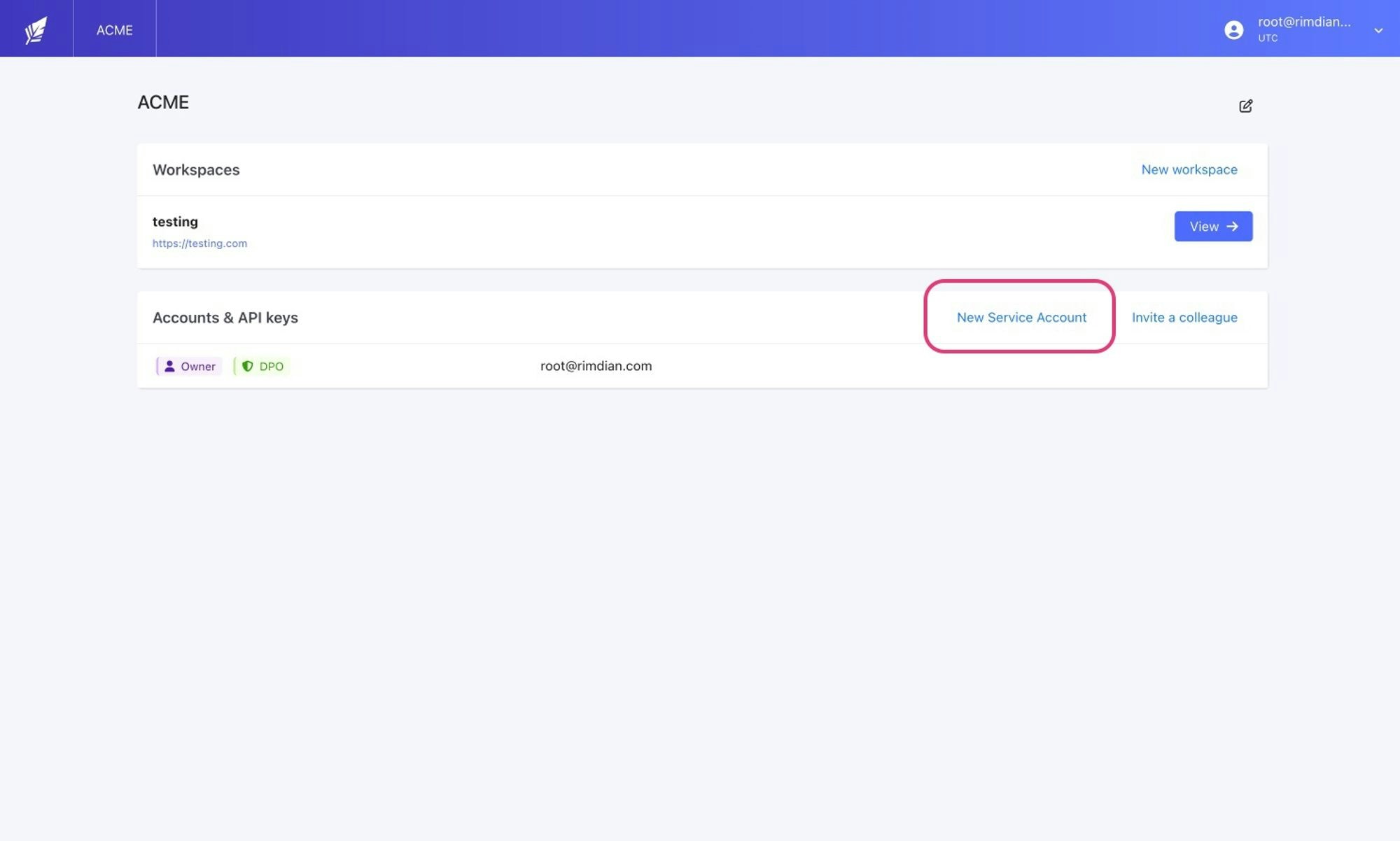
On your organisation dashboard, click the `New Service Account` button.
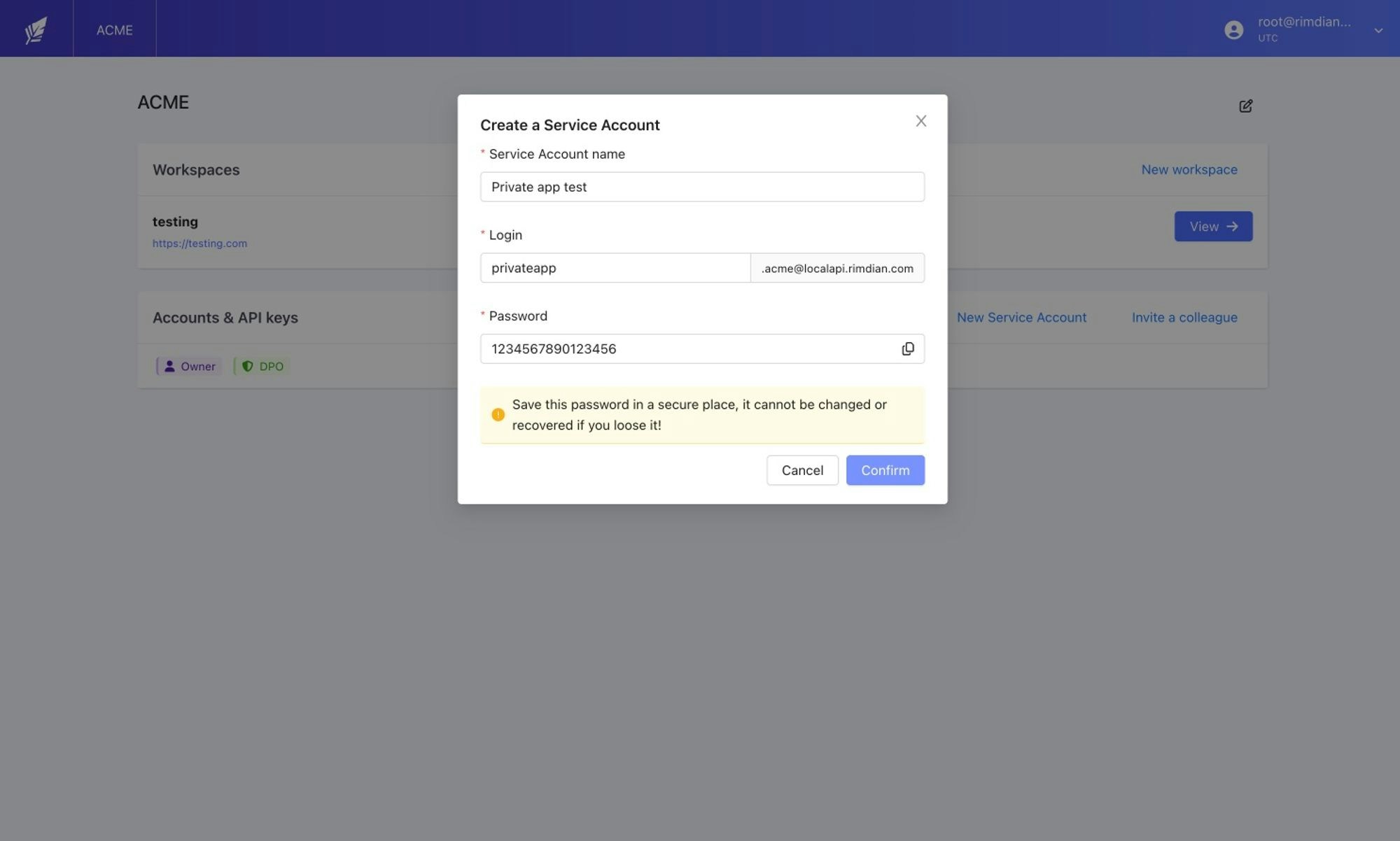
 Give it a name, a new login & password that you should keep securely, you won’t be able to view or update this password again.
 ### Create a private app
Select your workspace, and click the ➕ button in the topbar to go to the App Store and create a new **Private App**.
### Create a private app
Select your workspace, and click the ➕ button in the topbar to go to the App Store and create a new **Private App**.
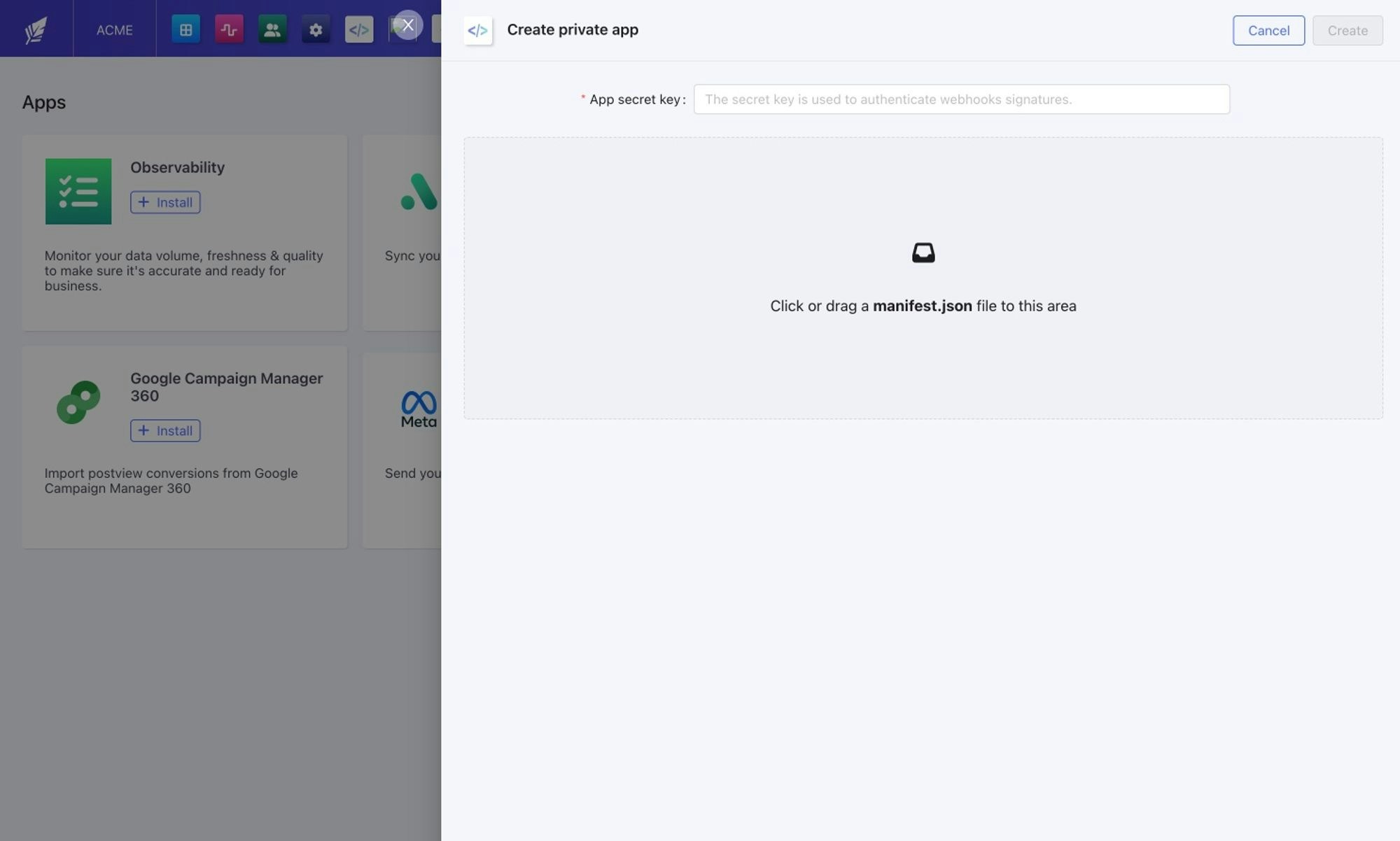 Provide the `App secret key` used by your app to sign webhooks & the iframe token. In the [NextJS App Template](https://github.com/rimdian/app-template), this is the `APP_SECRET_KEY` env variable.
And upload the `manifest.json` file of your app.
### Review the app capabilities
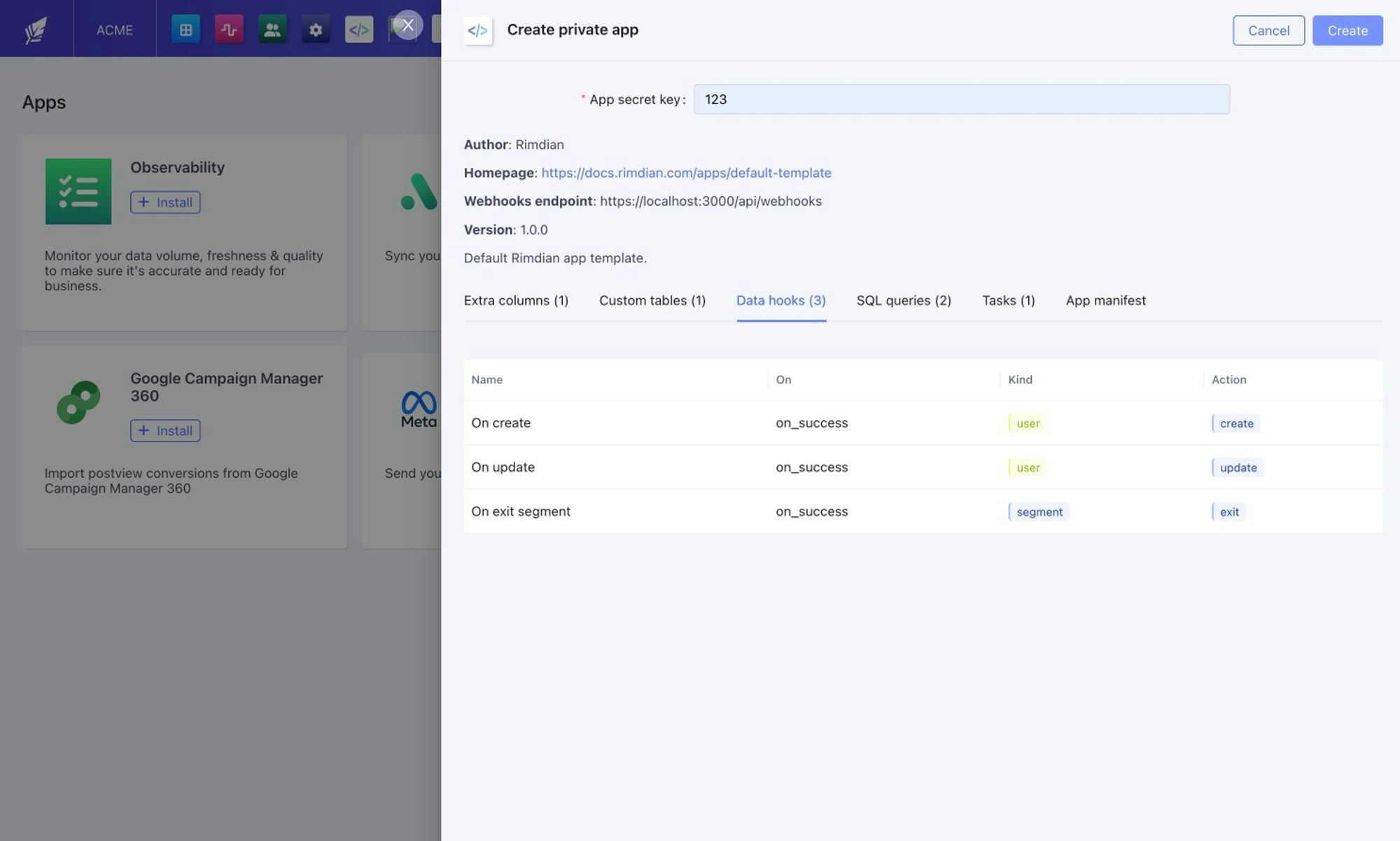
Before installing the app, you can review all the capabilities & permissions the app is asking.
Especially the domain name of the webhook endpoint that will receive data.
Provide the `App secret key` used by your app to sign webhooks & the iframe token. In the [NextJS App Template](https://github.com/rimdian/app-template), this is the `APP_SECRET_KEY` env variable.
And upload the `manifest.json` file of your app.
### Review the app capabilities
Before installing the app, you can review all the capabilities & permissions the app is asking.
Especially the domain name of the webhook endpoint that will receive data.
 ### Activate the app
Once installed, your private app will need to collect API credentials to interact with the Rimdian API & whatever settings required by your app.
I.e: if you build an app that interacts with the Google Adwords API, you will have to show the Google Connect button here, to collect Adwords credentials before activating your app.
### Activate the app
Once installed, your private app will need to collect API credentials to interact with the Rimdian API & whatever settings required by your app.
I.e: if you build an app that interacts with the Google Adwords API, you will have to show the Google Connect button here, to collect Adwords credentials before activating your app.
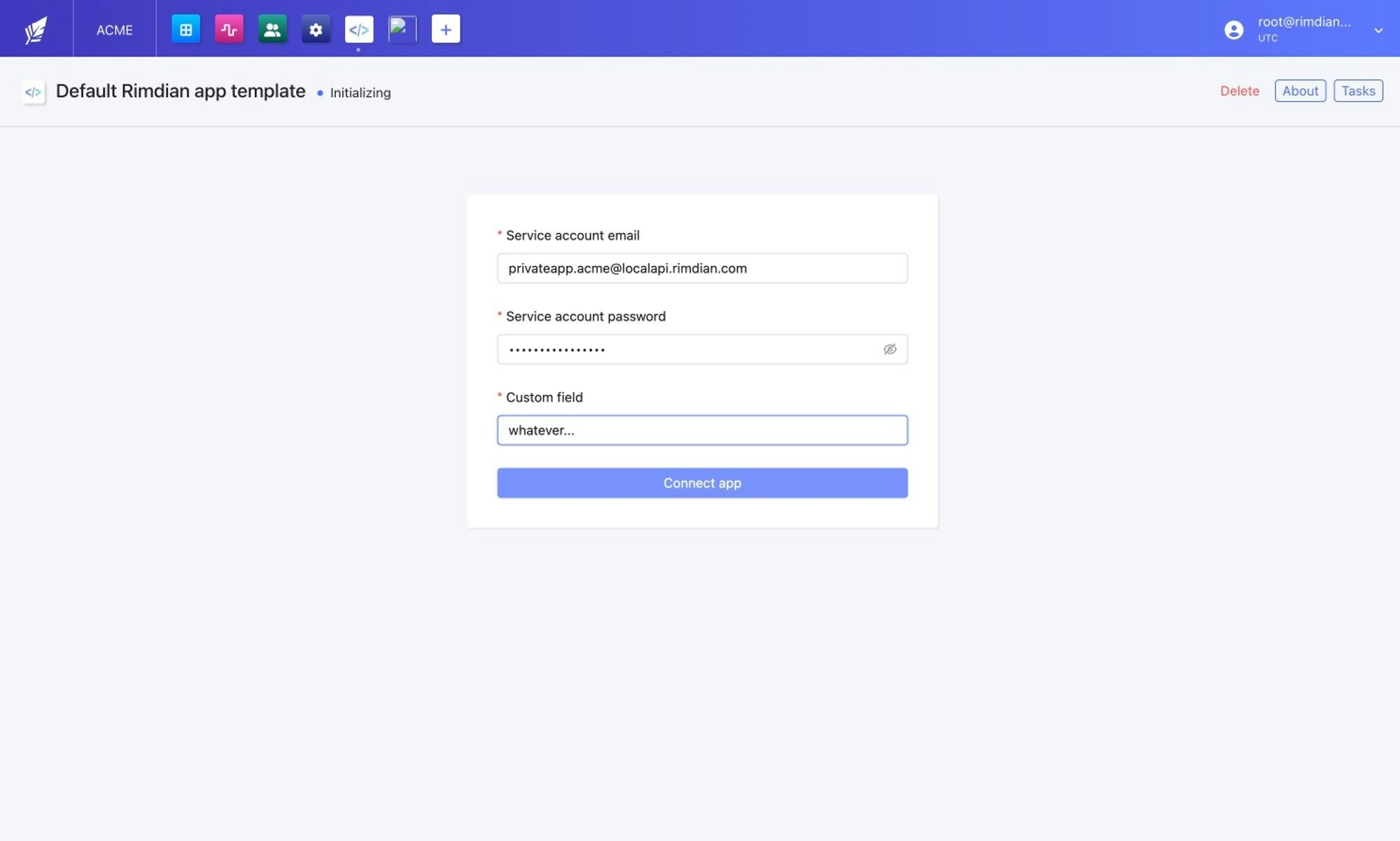 Upon activation, your app tasks & data hooks will also be activated.